

LATAM Airlines Manage Booking: How to Manage Your Trip Online
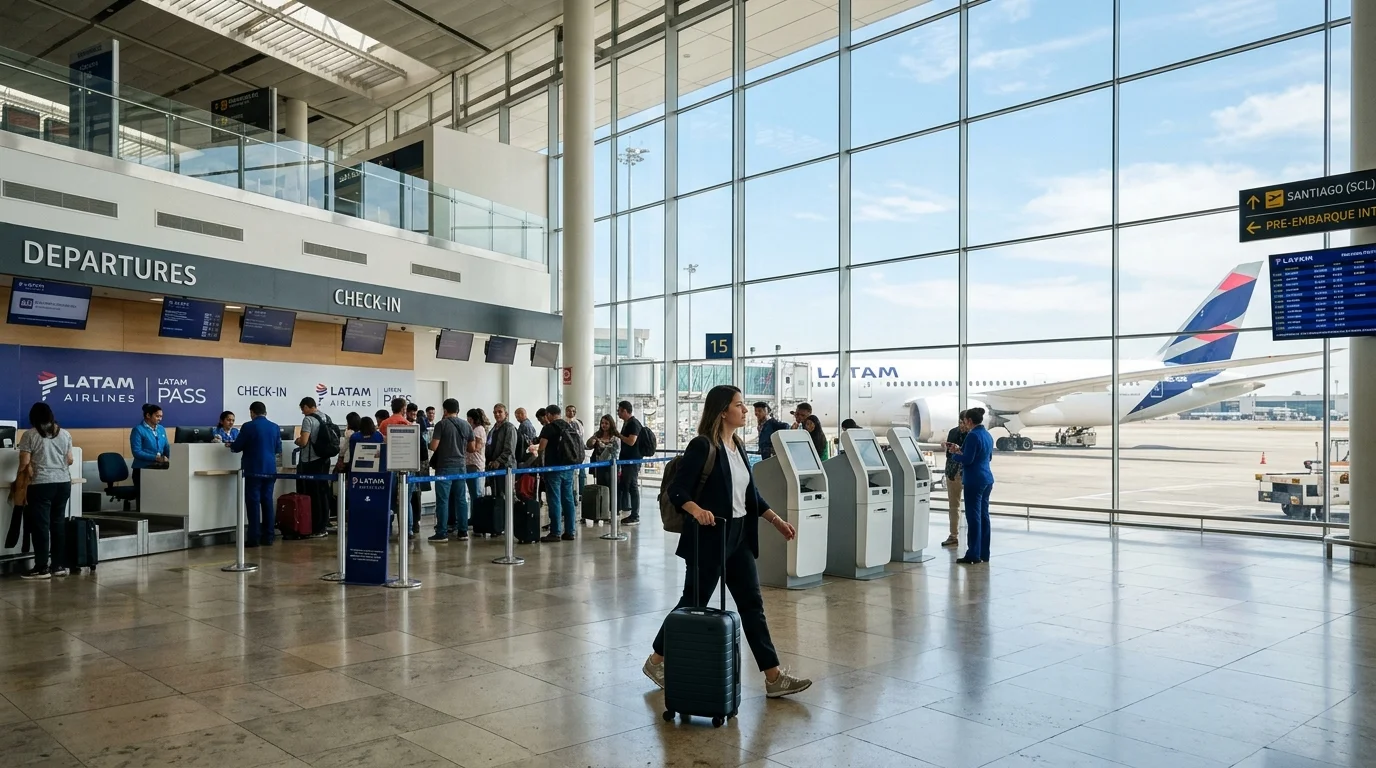
LATAM Airlines allows passengers to retrieve, review, and modify existing flight reservations through its official digital portal, branded as My Trips (frequently searched by travellers as LATAM Manage Booking). By entering your booking code or order number alongside the passenger's last name, you can view your updated itinerary, review ticket change or return eligibility, buy seat assignments, add baggage, purchase travel extras, and access your boarding pass when check-in is complete.
LATAM Manage Booking at a Glance
The table below outlines what services are available inside LATAM My Trips and the conditions governing each action:
| Task / Feature | Availability in LATAM My Trips | Conditions & Requirements |
|---|---|---|
| Find Booking | Available online and in-app | Requires 6-character reservation code or order number + passenger last name |
| View Itinerary | Available for all confirmed bookings | Displays flight schedule, operating carrier, cabin class, and itinerary status |
| View Boarding Pass | Available when eligible | Requires completed check-in within the eligible operational window |
| Change Flight Date / Time | Available when eligible | Subject to ticket fare rules, route availability, fare difference, and change penalties |
| Return / Cancel Ticket | Available when eligible | Subject to fare conditions, route regulations, and applicable cancellation fees |
| Buy / Select Seats | Where offered | Free or paid selection depends on purchased fare family and cabin layout |
| Add Checked Baggage | Where offered | Pre-purchase rates vary by route, cabin class, and individual baggage piece |
| Buy Travel Extras | Where offered | Includes cabin upgrades or special equipment where permitted on the itinerary |
How to Access LATAM My Trips
You do not need to create or log in to a LATAM Pass account to access an existing reservation. LATAM allows any passenger to retrieve an active itinerary directly through its self-service portal:
- Open the official LATAM Airlines website at latamairlines.com or launch the official mobile app.
- Navigate to the My Trips section on the main navigation menu.
- Choose your lookup identifier: select Order number or Reservation code (booking reference/PNR).
- Enter the required alphanumeric code and the passenger's Last name exactly as printed on the ticket receipt.
- Click the confirmation button to open your trip overview.
- Review your flight segments, ticket status, and the list of available management actions shown for your booking.
What You Need to Find Your Booking
To retrieve your trip successfully, ensure you have the exact reservation details on hand:
- Reservation Code (PNR): A 6-character alphanumeric code (for example:
K7L9M2) generated when your ticket is confirmed. - Order Number: A numeric or alphanumeric transaction identifier provided when purchasing directly on the LATAM digital store.
- Passenger Last Name: The family name associated with the booking, entered without prefixes, honorifics, or punctuation.
Understanding the Difference Between Booking Codes:
- Reservation Code / PNR: Used exclusively to identify your travel itinerary in the global reservation system.
- Ticket Number: A 13-digit e-ticket identifier (LATAM e-tickets generally begin with airline accounting prefix
045). - Flight Number: The operational route identifier (such as
LA600orJJ8010), which is not unique to your personal booking.
You can locate your reservation code or order number in your original booking confirmation email, e-ticket receipt, or electronic travel itinerary sent at the time of purchase.
What Can You Do With LATAM My Trips?
Available self-service actions in My Trips depend on the fare category purchased (such as Basic, Light, Plus, or Top), the country of purchase, operating carrier agreements, and ticket conditions.
| Action | Functionality | Considerations & Limitations |
|---|---|---|
| View Itinerary | Check departure/arrival times, stops, and terminal details. | Reconfirm times prior to departure; operational updates populate 48 hours out. |
| Access Boarding Pass | View or download digital boarding passes. | Check-in must be completed first (starting 48 hours prior to flight departure). |
| Change Ticket | Reschedule flight dates or departure times. | Permitted only if your fare conditions allow ticket modifications. |
| Return Ticket | Submit an eligible ticket for cancellation or refund. | Subject to ticket fare rules; non-refundable fares do not qualify for cash returns. |
| Buy Seat | Select standard, preferred, or extra-legroom seats. | Subject to seat availability and aircraft configuration. |
| Buy Baggage | Add checked baggage pieces to your booking. | Availability and purchase rates depend on route and baggage tier limits. |
| Buy Extras | Purchase additional ancillaries where eligible. | Services depend on route eligibility, operating aircraft, and inventory. |
How to Change a LATAM Flight Online
If your travel schedule shifts, you can check whether your reservation qualifies for an online flight change directly inside My Trips:
- Retrieve your booking on the official LATAM My Trips page using your reservation code and last name.
- Look for the ticket change option displayed on your itinerary summary.
- Select the flight leg or segments you wish to alter.
- Choose your new preferred travel date and time.
- Review the list of available alternative flights and compare schedule options.
- Check the fare breakdown: the system will calculate any applicable change fee alongside the fare difference between the original ticket and the new flight.
- Provide payment for any outstanding balance and confirm the change.
- Receive your updated e-ticket receipt and confirmation via email.
The actual options and costs shown on screen for your specific reservation are the controlling terms. LATAM does not apply a single universal change fee across all tickets; fees are dictated by your specific fare rules, the route flown, and time of modification.
Can You Change the Date, Time, Origin, or Destination?
- Changing Flight Date or Time: Date and time changes on the same route are the most standard modifications supported in My Trips. Whether a change is permitted free of charge or incurs a fee depends on your ticket conditions (for instance, premium fare tiers often permit changes without change penalties, requiring payment only for any fare difference).
- Changing Origin or Destination: Route changes (modifying your departure city or arrival destination) are generally not supported as a standard online self-service feature. Whether a full itinerary rerouting is permitted depends strictly on your fare rules and international ticketing conditions. In most cases involving origin or destination modifications, passengers must contact LATAM directly or request assistance through their ticketing travel agency.
Seat Selection
LATAM My Trips allows passengers to select or purchase seats in advance of travel:
- Complimentary Selection: Higher fare categories often include complimentary standard seat selection from the time of booking.
- Paid Seat Selection: Lower-tier fares (such as Basic or Light) may require a fee to select a specific seat before check-in opens.
- LATAM+ Seats: Extra-legroom seats situated toward the front of the aircraft or at exit rows are available for purchase across eligible aircraft, subject to safety regulations and availability.
For detailed cabin layouts, seat dimensions, and eligibility policies, consult our comprehensive LATAM seat selection guide.
Adding Baggage
If you need to travel with checked luggage that was not included in your initial fare purchase, you can add baggage allowances through My Trips:
- Baggage purchase availability, dimensional limits, and rates depend on your ticket conditions, departure region, and destination.
- Purchasing baggage in advance through digital channels generally provides clear cost clarity compared to processing excess luggage at the airport counter.
- Passengers should verify their exact baggage allowance on their updated itinerary receipt before arriving at the airport terminal.
For weight parameters, baggage sizes, and piece policies, see our dedicated LATAM baggage allowance guide.
Accessing Your Boarding Pass
The official My Trips interface allows passengers to view their boarding passes once the check-in requirement has been fulfilled:
- Managing vs. Checking In: Managing a booking allows you to adjust flight details, pick seats, or purchase luggage at any time. Checking in is an operational step that opens 48 hours prior to scheduled flight departure.
- Boarding Pass Display: Once check-in is complete, you can view your digital boarding pass, download it to your device, or access it inside the mobile app.
- Verification Requirements: If your international itinerary requires in-person document or visa verification at the terminal, the digital system may display an itinerary confirmation instead, instructing you to collect your physical boarding pass at the airport counter.
To review check-in windows and mobile boarding procedures, review our LATAM check-in guide.
Returning or Cancelling Your Ticket
LATAM My Trips provides self-service options to return or cancel eligible tickets:
- Fare Rule Dependency: Eligibility for ticket cancellation and monetary refunds is governed entirely by the conditions of the purchased fare. Standard promotional and restrictive economy fares are typically non-refundable unless local consumer protection laws provide specific withdrawal rights.
- Ticket Returns: Where permitted by fare rules, selecting the return option in My Trips displays the refundable value, any applicable cancellation penalties, and the net amount eligible for refund or travel credit.
- Reviewing Terms Before Confirming: Always review the final refund calculation and conditions displayed on screen before submitting a cancellation request. Once confirmed, ticket cancellations cannot be reversed.
To understand international fare conditions, compensation guidelines, and refund procedures, refer to our LATAM cancellation policy guide.
LATAM Manage Booking on Mobile
Passengers traveling with smartphones can access My Trips through a standard mobile web browser or via the official LATAM Airlines app (available on iOS and Android):
- No Login Needed: You can retrieve reservations on mobile web by entering the reservation code and last name.
- Account Integration: Logging into the LATAM mobile app automatically synchronizes bookings linked to your frequent flyer profile.
- Digital Boarding Passes: Mobile check-in allows you to store boarding passes locally on your device or in digital wallets for terminal scanning.
Bookings Made Through Travel Agencies
If your ticket was purchased through an online travel agency (OTA), traditional travel agent, or corporate travel booking engine:
- Viewing the Itinerary: In most cases, you can view your flight details and schedule inside LATAM My Trips using your airline reservation code (PNR).
- Modification Restrictions: Major flight changes, rerouting, or voluntary cancellations for agency-issued tickets are often restricted to the original issuing agency. If LATAM My Trips does not permit an online ticket modification, you must contact your booking provider directly.
- Ancillary Services: Adding baggage or selecting seats for agency bookings may still be accessible via My Trips, depending on the ticketing system used by the third party.
Codeshare and Partner Airline Bookings
When traveling on an itinerary that includes flights marketed by LATAM but operated by partner carriers (such as joint venture partner Delta Air Lines or interline airlines), operational parameters differ:
- Operating Carrier Authority: Seat selection, meal requests, special assistance, and aircraft equipment details are controlled directly by the airline operating the flight.
- Different Booking Codes: Partner airlines frequently assign their own unique 6-character reservation code to your segment. Use the operating airline's specific booking code to view your seat map on their respective website.
LATAM Booking Not Found? Troubleshooting Steps
If the system indicates that your reservation cannot be retrieved, review these common causes:
- Typographical Errors in Booking Code: Check that you have not confused similar alphanumeric characters (such as the number
0and the letterO, or the number1and the letterI). - Last Name Mismatches: Enter only the family name associated with the ticket. If you hold a hyphenated or compound surname, try entering it without spaces or hyphens as it appears on your electronic ticket receipt.
- Using the Wrong Reference: Confirm that you are entering the 6-character reservation code or order number, rather than the 13-digit e-ticket number or flight number.
- Recent Agency Reservations: Bookings made through external travel agents may take time to fully ticket in LATAM’s main reservation database.
- Direct Support Fallback: If your booking remains inaccessible online, contact official LATAM customer care to verify ticket status.
Manage Booking vs. Check-in vs. Flight Status
Travellers frequently confuse LATAM's primary digital travel tools. The table below outlines their distinct functions:
| Digital Tool | Primary Purpose | Availability Window | Typical Actions |
|---|---|---|---|
| Manage Booking / My Trips | Reservation management & ancillaries | From booking date up to travel completion | Change flights, buy seats, add baggage, return tickets |
| Check-in | Travel document confirmation & boarding passes | Opens 48 hours prior to scheduled departure | Confirm passenger details, issue boarding passes |
| Flight Status | Operational aircraft tracking & flight schedules | Active 48 hours before scheduled departure | Check runway delays, cancellations, and updated times |
If you need to verify whether an aircraft is delayed, track departure gates, or confirm schedule revisions on departure day, consult our LATAM flight status guide.
Official External Resources
- LATAM Airlines Official "My Trips" Portal: Direct link for passengers seeking to retrieve and manage reservations.
- LATAM Airlines Help Center: Official guidance on fare rules, refund terms, and ticket conditions.
Frequently Asked Questions
Access the official LATAM website, navigate to My Trips, and enter your 6-character reservation code or order number along with the passenger's last name.